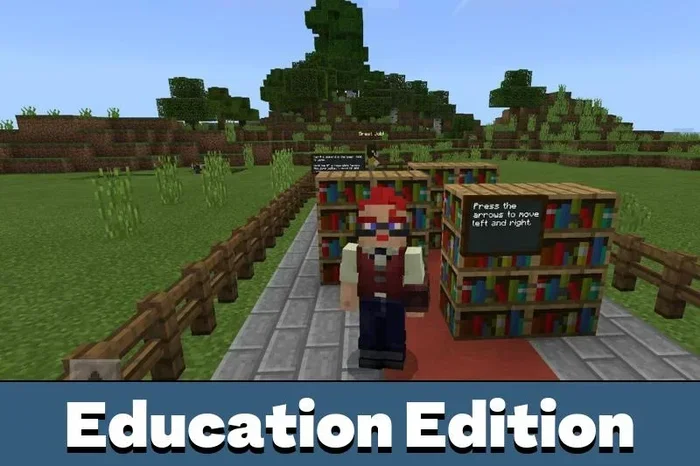
Adding mods to Minecraft Education Edition can transform a simple game into a powerful classroom tool. This step-by-step guide walks you through everything you need to know, from finding safe mods to installing them correctly. Teachers and students alike will discover how mods unlock new learning opportunities in Minecraft Education Edition. You will learn the setup process, troubleshooting tips, and best practices for a smooth experience.
Adding mods to Minecraft Education Edition might sound tricky, but it really is not. With the right steps, anyone can do it. Teachers use mods to make lessons more fun. Students explore new worlds of creativity and problem-solving. This guide breaks everything down into simple, easy-to-follow steps.
Mods change the way Minecraft Education Edition works. They add new blocks, creatures, and tools. Some mods teach coding. Others focus on science or history. The best part? You do not need to be a tech expert to get started. This guide covers everything from finding mods to fixing common problems.
Key Takeaways
- Mods expand learning: They add new features that make Minecraft Education Edition more engaging for students.
- Step-by-step installation is simple: Follow the guide to set up mods without technical headaches.
- Safety matters: Always download mods from trusted sources to protect your device and account.
- Teacher controls are essential: Use mod settings to manage the classroom experience effectively.
- Common mistakes are easy to avoid: A few tips can save you hours of frustration.
- Mods support STEM and creative learning: They open doors to coding, chemistry, and world-building lessons.
📑 Table of Contents
What Are Mods in Minecraft Education Edition?
Mods, short for modifications, are add-ons that change how the game works. Think of them like educational idioms for the game world. They give Minecraft Education Edition extra powers. Some mods add new animals or plants. Others let students build circuits or explore the human body.
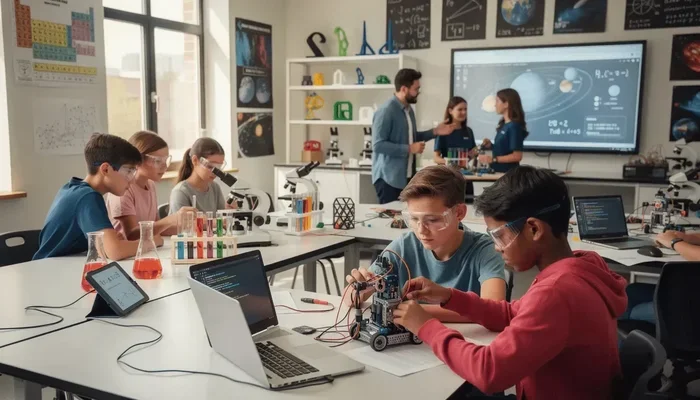
In a classroom setting, mods turn a simple game into a learning lab. Students can experiment, build, and solve problems in a safe digital space. The game-based learning approach keeps kids engaged. It also helps teachers deliver complex topics in a fun way.
Why Use Mods in the Classroom?
Mods bring real-world skills into the game. Students learn STEM concepts without even realizing it. They practice teamwork when building group projects. They develop critical thinking when solving in-game challenges. Here are a few reasons mods work so well:
- Engagement: Students stay focused longer when the game feels fresh.
- Creativity: Mods open up endless building and design possibilities.
- Hands-on learning: Kids learn by doing, not just reading.
- Customization: Teachers can tailor mods to match their lesson plans.
- Collaboration: Students work together in shared modded worlds.
How to Add Mods to Minecraft Education Edition Step by Step
Now let us get into the actual process. Adding mods is easier than most people think. Follow these steps carefully, and you will be up and running in no time.
Step 1: Check Your Device and Version
Before you start, make sure your device meets the requirements. Minecraft Education Edition works on Windows, Mac, and iPad. Open the game and check your version number. You need the latest version for most mods to work. Outdated versions cause compatibility issues and wasted time.
Also, confirm that your school or organization allows mod installations. Some networks have restrictions in place. Talk to your IT admin if you are unsure. Getting permission first saves a lot of trouble later.
Step 2: Find Trusted Mod Sources
Not all mods are safe. Some might contain viruses or inappropriate content. Stick to trusted websites and official Minecraft Education Edition resources. Here are some reliable places to look:
- The official Minecraft Education website and community forums.
- Trusted educational tech blogs that review classroom tools.
- Teacher-sharing platforms where educators upload vetted mods.
Always read reviews before downloading. If a mod looks suspicious, skip it. Safety comes first, especially when students are involved. Think of it like choosing the right similes for education — you want the ones that truly add value, not just filler.
Step 3: Download the Mod File
Once you find a mod you trust, download the file. Most mods come as a .zip or .mcpack file. Save the file to an easy-to-find location, like your desktop. Do not extract the file yet unless the instructions say so.
Pay attention to the mod description. Some mods need extra setup. Others work right away. If the mod is part of a larger resource pack, download all the required files first. Missing pieces can cause the mod to fail during installation.
Step 4: Import the Mod into Minecraft
Now it is time to bring the mod into the game. The process depends on your device type:
- On Windows or Mac: Double-click the .mcpack file. Minecraft Education Edition will open automatically and import the mod.
- On iPad: Tap the file, and it will prompt you to open it in Minecraft.
- For .zip files: Extract the contents first, then import the .mcpack file inside.
After importing, open the game. Go to the settings or resource packs menu. You should see the new mod listed there. Activate it, and you are good to go.
Step 5: Test the Mod in a World
Never skip the testing step. Create a new creative world and try out the mod. Check if all features work as expected. Look for any glitches or errors. If something does not work right, try re-importing the mod file.
Testing is especially important in a classroom setting. You do not want surprises during a live lesson. Spend a few minutes exploring the modded world before sharing it with students. This small step saves a lot of classroom disruptions later.
Step 6: Share with Students
Once the mod is working, share it with your class. You can upload the mod file to your school’s learning management system. Or share it directly through the game’s multiplayer settings. Make sure every student has access to the same version of the mod.
Give students clear instructions on how to use the mod. A quick demo at the start of the lesson goes a long way. You can also create a simple guide or video walkthrough. When students understand the tool, they use it more effectively.
Best Mods for Minecraft Education Edition
Not all mods are created equal. Some are perfect for education, while others are just for fun. Here are some of the best mods for classroom use:
- Chemistry Add-On: Lets students conduct virtual experiments and learn about elements.
- Code Builder: Teaches basic programming concepts through interactive challenges.
- World Builder Mods: Helps students create historical landmarks and geographical models.
- Math Mods: Uses in-game blocks to teach fractions, geometry, and measurement.
- Storytelling Mods: Encourages creative writing and narrative building in the game world.
These mods align with educational learning goals across subjects. Science teachers love the chemistry tools. Math teachers use blocks to explain abstract concepts. Language arts teachers encourage students to build and describe their worlds. The possibilities are truly endless when you know where to look.
Common Mistakes When Adding Mods
Even with a good guide, mistakes happen. Here are the most common ones and how to avoid them:
- Skipping version checks: Always verify that the mod matches your game version.
- Downloading from unverified sites: Stick to trusted sources to avoid security risks.
- Forgetting to import the file: Downloading is not enough. You must import the mod into the game.
- Not testing before class: Always test mods in a separate world first.
- Overloading with too many mods: Too many mods can cause lag or conflicts. Start with one or two.
Avoiding these mistakes makes the process much smoother. Think of it like learning metaphors for education — small, precise choices make a big difference in the outcome.
Quick Tips for a Smooth Modding Experience
Here are some expert tips to make your modding journey easier:
- Start small: Use one mod at a time until you feel comfortable.
- Keep backups: Save your original world before adding mods. This way, you can restore it if something goes wrong.
- Join teacher communities: Other educators share great mod recommendations and tips online.
- Document your process: Write down the steps you follow. This helps you repeat the process for future lessons.
- Ask for student input: Let students suggest mods they want to try. It boosts engagement and ownership of their learning.
These tips come from experienced educators who use Minecraft Education Edition daily. They save time and reduce frustration. Bookmark this page and come back whenever you need a refresher.
Troubleshooting Mod Issues
Sometimes mods do not work the way you expect. Do not panic. Most issues have simple fixes. Here are common problems and their solutions:
- Mod does not appear in-game: Re-import the file and check that it is activated in the resource packs menu.
- Game crashes after importing: Remove the mod and try again. It might be incompatible with your version.
- Mod features are missing: Check if the mod requires additional files or resource packs.
- Lag or performance issues: Too many mods can slow down the game. Remove unused mods to improve performance.
Most troubleshooting is straightforward. A little patience goes a long way. If you get stuck, the Minecraft Education community forums are a great place to find help. Many teachers share solutions to common problems there.
How Mods Support Educational Outcomes
Mods do more than just add fun features. They directly support learning outcomes in meaningful ways. Research shows that game-based learning improves student motivation and retention. When students interact with content in a hands-on environment, they remember it better.
Mods also support differentiated learning. Students who struggle with traditional methods often thrive in a visual, interactive setting. Mods give teachers the flexibility to meet every student where they are. Whether you are teaching a Minecraft classroom lesson on ecosystems or historical civilizations, mods make it possible.
The combination of play and learning creates a powerful educational experience. Students develop skills in problem-solving, collaboration, and creativity. These are the same skills employers value in the real world. By adding mods to Minecraft Education Edition, you are preparing students for the future in a way they genuinely enjoy.
Conclusion
Adding mods to Minecraft Education Edition opens up a world of possibilities for teachers and students. The process is straightforward when you follow the right steps. From finding trusted sources to testing and sharing, each step matters. Start with one or two mods, test them carefully, and build from there.
Remember that the goal is to enhance learning, not complicate it. Choose mods that align with your lesson objectives. Keep safety and simplicity at the forefront of your decisions. With the right approach, Minecraft Education Edition becomes one of the most powerful educational tools available. So go ahead, explore, experiment, and watch your students thrive in a modded world of learning.
Frequently Asked Questions
Can I add mods to Minecraft Education Edition on a Chromebook?
Yes, but the process is slightly different. Chromebooks support .mcpack files through the Google Play version of Minecraft Education Edition. Make sure your device is updated and that your school allows app installations. Some mods may not work on Chromebooks due to system limitations, so always test first.
Are mods safe for students to use?
Mods are safe when downloaded from trusted sources. Always verify the website or platform before downloading any file. Avoid mods from unknown or unverified sites. Teachers should review and test every mod before sharing it with students to ensure it is age-appropriate and secure.
Do I need to know how to code to use mods?
No, you do not need coding skills. Most mods for Minecraft Education Edition are plug-and-play. You download the file, import it into the game, and activate it. Some advanced mods may require basic setup, but the majority are designed for easy use by teachers and students of all skill levels.
Can students add mods on their own devices?
Yes, students can add mods if they have the correct files and permissions. However, it is best for teachers to manage mod installations in a classroom setting. This ensures all students use the same version and avoids compatibility issues. Provide students with clear step-by-step instructions or a shared resource pack file.
What is the difference between mods and add-ons in Minecraft Education Edition?
Mods typically change game mechanics and add new features. Add-ons are officially supported by Microsoft and work within the game’s built-in system. Minecraft Education Edition officially supports add-ons through its behavior and resource pack system. Mods, on the other hand, are often created by the community and may require extra steps to install.
How many mods can I use at once in Minecraft Education Edition?
There is no strict limit, but using too many mods at once can cause performance issues. Start with one or two mods and test them thoroughly. If the game runs smoothly, you can gradually add more. Always prioritize quality and educational value over quantity to keep the experience smooth and focused for students.