Minecraft Education Edition is a powerful learning tool that brings gaming into the classroom. This guide shows you exactly how to get Minecraft Education Edition on any device, whether you are a teacher, student, or parent. You will learn about system requirements, costs, setup steps, and tips to make the most of this educational gaming platform.
Minecraft has come a long way from its humble block-building origins. Today, it is not just a game. It is a classroom tool, a creativity engine, and a STEM learning platform. Minecraft Education Edition takes the familiar world of blocks and turns it into a place where students can learn history, science, math, and even coding. If you have been wondering how to get Minecraft Education Edition and start using it, you are in the right place. This guide walks you through every step, from requirements to setup, in simple and clear language.
The beauty of this platform is that it meets students where they already are. Kids love Minecraft. When you combine that love with structured learning, something magical happens. Students stay engaged. They collaborate. They problem-solve. And they actually remember what they learned. Let us dive into everything you need to know about getting started.
Key Takeaways
- Minecraft Education Edition is free for eligible teachers and students with a valid school account.
- You need a Microsoft 365 Education account to access and download the game.
- The game works on Windows, Mac, iPad, and Chromebook devices with specific system requirements.
- Setting up Minecraft Education Edition takes only a few minutes if you have the right account.
- Teachers can access lesson plans and classroom tools to integrate the game into learning.
- Students can explore STEM, coding, and creativity through immersive game-based lessons.
📑 Table of Contents
- What Is Minecraft Education Edition?
- System Requirements for Minecraft Education Edition
- How to Get Minecraft Education Edition: Step by Step
- Is Minecraft Education Edition Free?
- Features That Make Minecraft Education Edition Special
- Common Mistakes to Avoid When Getting Started
- Quick Tips for Teachers and Students
- How Minecraft Education Edition Compares to Regular Minecraft
- Final Thoughts
What Is Minecraft Education Edition?
Minecraft Education Edition is a version of Minecraft built specifically for schools and learning environments. It was developed by Mojang Studios and Microsoft to bring game-based learning into classrooms around the world. Unlike the standard game, this edition comes with special tools designed for educators.
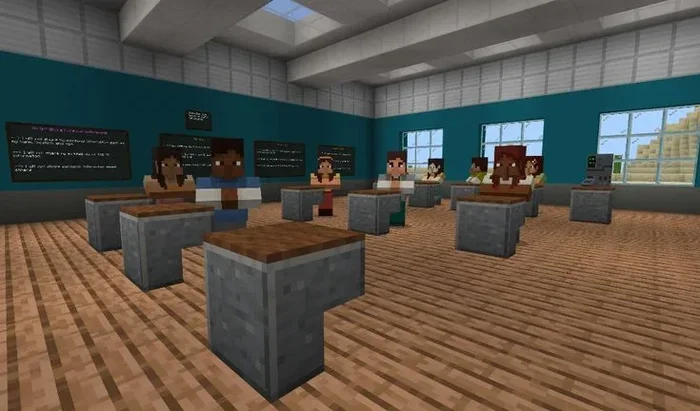
Teachers can create custom worlds, set learning objectives, and monitor student progress. Students can explore historical landmarks, build complex machines, or learn basic programming concepts. The game supports collaborative learning in a safe and controlled environment. It is designed for ages 5 and up, making it versatile for elementary through high school settings.
One of the best things about this tool is how it bridges the gap between play and learning. Think of it like using similes for education to draw comparisons that make complex ideas easier to grasp. Just as a simile helps us understand one thing by comparing it to another, Minecraft Education Edition helps students understand abstract concepts by letting them build and experience those ideas in a virtual world.
System Requirements for Minecraft Education Edition
Before you download anything, you need to know if your device can run Minecraft Education Edition. The good news is that it is compatible with a wide range of devices. Here is what you need to know.
Supported Devices
- Windows 10 or later (PC and laptops)
- macOS (Apple computers)
- iPad (iPadOS 13 or later)
- Chromebook (Chrome OS)
Minimum System Requirements
- Processor: Intel Core i3 or equivalent
- RAM: 4 GB minimum
- Storage: 1 GB of available space
- Graphics: DirectX 10 or later compatible
- Internet: Required for initial download and login
These requirements are fairly modest. Most modern school computers and home devices will handle the game without any issues. If your device runs the standard version of Minecraft, it will almost certainly run Education Edition as well.
How to Get Minecraft Education Edition: Step by Step
Now for the part you have been waiting for. Here is exactly how to get Minecraft Education Edition and start playing. The process is straightforward, but there are a few important steps to follow.
Step 1: Check Your Eligibility
Minecraft Education Edition is primarily designed for eligible teachers and students. To qualify, you typically need a valid Microsoft 365 Education account. This is the account your school provides. If you are a teacher, check with your school IT department. If you are a student, ask your teacher or school administrator.
Step 2: Create or Verify Your Microsoft 365 Education Account
If you do not already have one, you will need to set up a Microsoft 365 Education account. Visit the Microsoft Education website and follow the sign-up process. You will need a school-issued email address. This account is what gives you access to the free Minecraft Education Edition license.
Step 3: Download the Game
Once your account is ready, head to the Minecraft Education Edition website. Click the “Get Started” or “Download” button. Choose your platform (Windows, Mac, iPad, or Chromebook). The download is free for eligible users. Follow the on-screen prompts to complete the installation.
Step 4: Log In and Launch
After installation, open the game and sign in with your Microsoft 365 Education account. You will be taken to the main hub where you can explore lesson plans, join existing worlds, or start building in a creative mode. The first time you launch, the game may take a moment to load all the educational assets.
Step 5: Start Playing and Learning
Once you are in, the world is your oyster. You can join a class lesson, explore a pre-built world, or start a fresh project. Teachers can assign specific activities, and students can complete them at their own pace. It is that simple to get Minecraft Education Edition up and running.
Is Minecraft Education Edition Free?
This is one of the most common questions people ask. The short answer is yes, for eligible users. Teachers and students with a valid Microsoft 365 Education account can access Minecraft Education Edition at no cost. However, there are some important details to keep in mind.
If you are a homeschool parent or a private tutor without a school-issued account, the situation is different. Microsoft does offer a free trial period for new users. After the trial ends, you may need to purchase a license. The standard cost is around $5 per user per year, though prices can vary by region and institution.
There is also a free demo version available on the Minecraft Education Edition website. This lets you explore the game and its features before committing to a full license. It is a great way to test the waters and see if it fits your learning needs.
| Access Type | Cost | Who Can Use It |
|---|---|---|
| Full License (School Account) | Free | Teachers and students with Microsoft 365 Education |
| Free Trial | Free (limited time) | Anyone with a Microsoft account |
| Paid License | ~$5/year | Non-eligible users and homeschoolers |
| Demo Version | Free | Anyone (limited features) |
Features That Make Minecraft Education Edition Special
What sets this version apart from regular Minecraft? It comes packed with tools designed specifically for learning. Let us look at some of the standout features.
Lesson Plans and Curriculum Alignment
Teachers have access to a library of ready-made lesson plans. These cover subjects like math, history, science, and art. Each lesson is aligned with learning standards, so you know it fits into your curriculum. You can find lessons for every grade level, from kindergarten through high school.
Code Builder
This feature introduces students to basic coding concepts. Using visual programming tools, students can write code that controls in-game agents. It is a fun and hands-on way to learn programming logic without the intimidation of traditional coding environments. Think of it as using metaphors for education where the game world itself becomes a metaphor for how code works behind the scenes.
Classroom Collaboration
Students can work together in shared worlds. They can build projects, solve puzzles, and complete challenges as a team. This promotes communication, teamwork, and problem-solving skills. Teachers can observe and guide students in real time.
Camera and Portfolio Tools
Students can take screenshots and record their progress. These build a digital portfolio that teachers can review and assess. It is a great way to document learning and celebrate student achievements.
Non-Player Characters (NPCs)
Teachers can create custom NPCs that guide students through lessons. These characters can give instructions, provide hints, or link to external resources. It adds an interactive layer to the learning experience.
Common Mistakes to Avoid When Getting Started
Setting up Minecraft Education Edition is usually smooth, but a few common pitfalls can slow you down. Here is what to watch out for.
- Using a personal Microsoft account instead of an Education account. This will block access to the free license. Always double-check that you are signing in with your school-issued email.
- Skipping system requirements. Even though the game runs on most devices, older computers may struggle. Check your specs before downloading.
- Not exploring the lesson library early. The built-in lesson plans are a goldmine. Teachers should browse them before their first class session.
- Forgetting to check internet connectivity. The game requires a stable connection for initial setup and some features.
- Assuming it is only for tech classes. Minecraft Education Edition works across subjects, from language arts to social studies. Do not limit your thinking.
When you avoid these mistakes, the setup process becomes much smoother. You will be building and learning in no time.
Quick Tips for Teachers and Students
Here are some practical tips to help you make the most of Minecraft Education Edition from day one.
- Start small. Begin with a simple creative world where students just explore and build. Do not jump straight into complex lessons.
- Use the tutorial world. Minecraft Education Edition includes a built-in tutorial. It teaches the basics of controls and features in a fun way.
- Create a class code. Teachers can generate a unique class code that students use to join your world. Share it at the start of each session.
- Pair students up. Teamwork enhances the learning experience. Pairing beginners with more experienced players helps everyone grow.
- Take screenshots often. These serve as evidence of learning and can be used for assessments and parent-teacher conferences.
- Explore the community. The Minecraft Education website has forums, tutorials, and ideas shared by teachers worldwide. Tap into this resource.
How Minecraft Education Edition Compares to Regular Minecraft
It is helpful to understand the differences between the two versions. Here is a quick comparison.
| Feature | Minecraft Education Edition | Regular Minecraft |
|---|---|---|
| Target Audience | Students and teachers | General public |
| Cost | Free for eligible users | Paid license required |
| Lesson Plans | Included | Not included |
| Code Builder | Yes | No |
| Classroom Tools | Yes | No |
| NPC Guidance | Yes | Limited |
| Multiplayer | Classroom-based | Server-based |
Both versions share the same core building and exploration mechanics. But Education Edition adds layers of structure and safety that make it ideal for learning environments. It is like using idioms for education to add depth and meaning to everyday communication. The extra tools in Education Edition add layers of depth and purpose that regular Minecraft simply does not have.
Final Thoughts
Getting Minecraft Education Edition is easier than most people think. As long as you have the right Microsoft 365 Education account and a compatible device, you can be up and running in minutes. The platform opens up a world of possibility for teachers who want to engage students in new and exciting ways. Students get to learn through play, collaborate with peers, and develop skills that will serve them well beyond the classroom.
Whether you are a teacher looking for fresh ways to teach STEM concepts, a student eager to explore in a creative environment, or a parent searching for educational screen time, Minecraft Education Edition delivers. Follow the steps in this guide, avoid the common pitfalls, and you will be on your way to a rewarding learning experience. The blocks are waiting. Start building your knowledge today.
Frequently Asked Questions
Do I need a special account to access Minecraft Education Edition?
Yes, you need a Microsoft 365 Education account to access the full version for free. This account is typically provided by your school or educational institution. If you do not have one, you can try the free trial or purchase a license.
Can I use Minecraft Education Edition on a personal device?
Yes, as long as your device meets the system requirements and you have the right account. The game works on Windows, Mac, iPad, and Chromebook devices. Just make sure you sign in with your Microsoft 365 Education credentials.
Is Minecraft Education Edition really free for teachers?
It is free for eligible teachers and students who have a valid Microsoft 365 Education account. There are no hidden costs for users who qualify. Some features may require a paid license if you do not have an Education account.
What subjects can I teach with Minecraft Education Edition?
The game is incredibly versatile. You can teach math, history, science, language arts, art, and coding. There are ready-made lesson plans for nearly every subject and grade level. Teachers can also create custom worlds for any topic they want to cover.
How is Minecraft Education Edition different from the regular game?
Education Edition includes classroom tools, lesson plans, code builder, NPC guidance, and collaborative features designed for learning. Regular Minecraft focuses on open-ended play and survival. Both share the same core building mechanics but serve different purposes.
Can homeschoolers use Minecraft Education Edition?
Homeschoolers can access a free trial version. For full access, they may need to purchase a license since they typically do not have a Microsoft 365 Education account. The trial lets you test the platform before committing to a purchase.