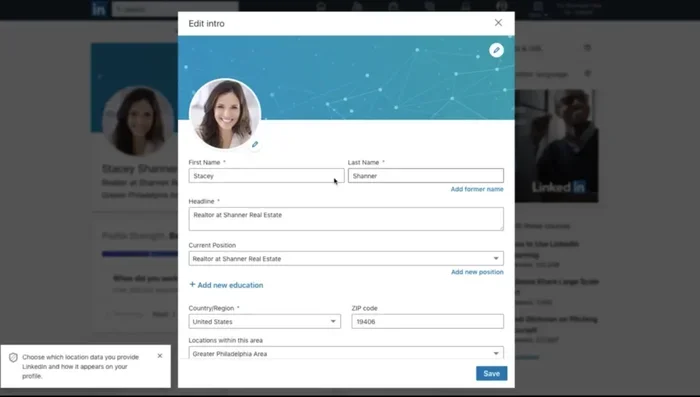
Removing your education details from LinkedIn is simple and can help you maintain a polished, current profile. Whether you want to hide outdated degrees or streamline your professional information, our guide shows you exactly how to delete education on LinkedIn in just a few clicks. You’ll also learn what happens after deletion and how to keep your profile looking its best.
Key Takeaways
- Easy Process: Deleting education on LinkedIn takes only a few minutes through your profile editing tools.
- No Permanent Record: Removing education entries does not affect your LinkedIn account or other profile data.
- Privacy Control: You can choose to hide or fully remove education details based on your needs.
- Profile Optimization: A clean profile with relevant information performs better in searches and recruiter views.
- Reversible Action: You can always add education back if you change your mind later.
📑 Table of Contents
Why You Might Want to Delete Education on LinkedIn
Your LinkedIn profile is like a digital resume. It follows you everywhere online. Sometimes, old education entries just don’t fit anymore. Maybe you earned a degree years ago and it no longer reflects your current career path. Or perhaps you completed a short course that has become irrelevant.
Whatever the reason, knowing how to delete education on LinkedIn gives you full control over your professional story. A cluttered profile can confuse recruiters and hiring managers. They want to see what’s relevant right now. Removing outdated entries helps your profile stay sharp and focused.
People often describe their educational journeys using colorful language. For instance, they might say learning was a “walk in the park” or a “real eye-opener.” These kinds of expressions come up all the time when people talk about school and training. If you’re curious about how we use language to describe education, you might enjoy exploring similes for education, metaphors for education, and idioms for education on our site. They’re fun reads that show how deeply education is woven into everyday speech.
But let’s get back to the main task. Cleaning up your LinkedIn profile is one of the best things you can do for your career. It signals professionalism and intentionality. Recruiters notice when a profile looks well-maintained. So let’s dive into the actual steps.
Step-by-Step Guide to Deleting Education on LinkedIn
Step 1: Log In and Go to Your Profile
First, open LinkedIn in your browser or app. Sign in with your email and password. Once you’re in, click on your profile picture at the top of the page. This takes you to your personal profile page. Make sure you’re viewing your own profile, not someone else’s.
Step 2: Click the Edit Button
On your profile page, look for the “Edit” icon. It usually appears as a small pencil symbol next to the Education section. Click on it. A dropdown menu will appear with several options. You’ll see choices to add, reorder, or remove education entries.
Step 3: Select the Education Entry to Delete
You’ll see a list of all your education entries. Each one shows the school name, degree, field of study, and dates. Find the one you want to remove. Click on the pencil icon next to that specific entry. A new window will open with the full details of that education record.
Step 4: Choose the Remove Option
In the editing window, look for the “Remove” button. It’s usually at the bottom or top of the form. Click it. LinkedIn will ask you to confirm. This is a safety step to make sure you don’t delete anything by accident. Click “Yes” or “Confirm” to finalize the removal.
Step 5: Save Your Changes
After removing the entry, scroll down and click “Save.” Your profile will update immediately. The education entry will no longer appear on your public profile. You can repeat these steps for any other education entries you want to delete.
Quick Tip: If you’re using the LinkedIn mobile app, the process is nearly identical. Tap the “Me” tab, then your profile, then the pencil icon next to Education. The “Remove” option works the same way on both platforms.
What Happens When You Delete Education from Your Profile
Does It Affect Your LinkedIn Account?
No. Removing education entries does not harm your account in any way. Your connections, posts, and other profile sections stay exactly the same. You can still search for jobs, message contacts, and post content. LinkedIn treats education as optional profile data. It’s not required to keep your account active.
Will Recruiters Still Find You?
Yes. LinkedIn’s search algorithm looks at many factors. These include your skills, experience, headline, and keywords. Education is just one piece of the puzzle. Many professionals land great jobs without listing any education at all. What matters most is your experience and the skills you showcase.
Can You Add Education Back Later?
Absolutely. The deletion is not permanent in a destructive sense. You can always go back and add education entries whenever you want. LinkedIn keeps no record of removed entries. So if you decide to add a degree back, you’ll need to enter all the details again from scratch.
| Aspect | Before Deletion | After Deletion |
|---|---|---|
| Profile Visibility | Education shows publicly | Education section hidden |
| Recruiter Search Results | Education keywords match | Other keywords still match |
| Account Status | Active | Active (unchanged) |
| Connections | Intact | Intact |
| Reversibility | N/A | Can re-add anytime |
Key Takeaway: Deleting education is a low-risk, high-reward move for profile cleanup. It gives you more control without any downside.
Common Mistakes to Avoid When Editing Your LinkedIn Profile
Deleting the Wrong Entry
It happens more often than you’d think. You tap the wrong pencil icon and remove the wrong school. The good news is you can just add it back. But it’s still annoying. To avoid this, double-check which entry you’re selecting before clicking “Remove.” Take a screenshot of your profile before making changes. That way, you have a backup reference.
Removing All Education at Once
Some people delete every education entry in one go. This can look suspicious to recruiters. If you have a degree from a well-known institution, consider keeping it. Even if it’s not directly related to your current job, it still adds credibility. Be strategic about what you remove and what you keep.
Forgetting to Update the Education Section Title
After deleting entries, your remaining education entries might look out of order. LinkedIn lets you reorder them by dragging and dropping. Make sure your most recent or most relevant education appears first. This small detail makes a big difference in how recruiters perceive your profile.
Not Reviewing the Rest of Your Profile
While you’re in edit mode, take a few minutes to review everything else. Update your headline, check your experience dates, and refresh your skills list. A thorough profile review ensures everything stays consistent and current.
Expert Insight: Think of your LinkedIn profile like a garden. Regular pruning keeps it healthy and attractive. Removing outdated education is just one pruning task. Do it regularly, and your profile will always look its best.
Tips for Keeping Your LinkedIn Profile Clean and Updated
Set a Quarterly Review Reminder
Every three months, spend 15 minutes reviewing your profile. Check for outdated education entries, expired certifications, or old job titles. Small updates keep your profile fresh without overwhelming you. Set a recurring calendar reminder to make this habit stick.
Focus on Skills and Experience
Recruiters care most about what you can do, not where you went to school. Invest time in updating your skills section and writing strong descriptions for each job. These elements drive more profile views and connection requests than education entries ever will.
Use Keywords Strategically
LinkedIn is a search engine at its core. Use relevant keywords throughout your profile. Include industry terms, job titles, and skills that match your career goals. This helps recruiters find you when they search for candidates. Strong keyword use boosts your visibility far more than any degree listing.
Keep Your Profile Professional but Personal
Your LinkedIn profile should reflect who you are professionally. It should also feel human. Add a friendly headline, write a compelling summary, and include a professional photo. These elements work together to create a profile that stands out from the crowd.
Final Thoughts
Learning how to delete education on LinkedIn is a simple but powerful skill. It gives you the ability to shape your professional narrative with precision. Whether you’re removing an old degree, hiding a certification, or just cleaning up your profile, the process is quick and straightforward.
Remember, your LinkedIn profile is a living document. It should grow and change with your career. Don’t be afraid to edit it regularly. A clean, focused profile attracts better opportunities and makes stronger first impressions.
Take a few minutes today to review your education section. Remove what no longer serves you. Keep what adds value. Your future self and your future recruiters will thank you.
And if you ever want to explore the fun side of how we talk about learning and school, don’t forget to check out our collection of idioms for education. It’s a great way to see how deeply education language runs through everyday conversation.
Frequently Asked Questions
Can I delete education on LinkedIn without affecting my account?
Yes, absolutely. Removing education entries has no impact on your LinkedIn account. Your connections, messages, posts, and other profile sections remain completely unaffected. Education is optional profile information, and deleting it is a safe, reversible action.
Will recruiters still find me if I remove my education?
Yes, they will. LinkedIn’s search algorithm considers many factors beyond education. Your skills, experience, headline, and keywords play a much bigger role in search results. Many successful professionals have minimal or no education listed on their profiles and still attract plenty of recruiter attention.
How do I delete multiple education entries at once?
LinkedIn does not offer a bulk delete option for education entries. You need to remove each entry one at a time through the profile editing process. Click the pencil icon next to each entry, select “Remove,” and confirm. It only takes a few minutes even with several entries.
Can I hide education instead of deleting it entirely?
Yes, LinkedIn gives you privacy settings that let you control who sees your education. You can choose to show it only to connections or hide it from public view. However, hiding and deleting are different. Hiding keeps the data on your profile, while deleting removes it completely.
What should I do if I accidentally delete the wrong education entry?
Don’t worry. You can simply add the education back by clicking “Add Education” on your profile. You’ll need to re-enter all the details, including school name, degree, field of study, and dates. There is no way to recover deleted entries automatically, so it’s always good to double-check before confirming removal.
Does deleting education improve my LinkedIn profile?
It can, especially if the education entries are outdated or irrelevant to your current career goals. A streamlined profile that focuses on relevant experience and skills tends to perform better in recruiter searches. The key is to keep your profile accurate, current, and aligned with your professional identity.
=== CONCLUSION ===
Deleting education on LinkedIn is one of the easiest and most effective ways to keep your profile sharp and relevant. With just a few clicks, you can remove outdated entries, streamline your profile, and make a stronger impression on recruiters and connections alike.
Follow the steps outlined in this guide, avoid the common mistakes, and make profile reviews a regular habit. Your LinkedIn presence is one of your most powerful professional tools. Treat it well, and it will open doors for you. Start today, and enjoy the confidence that comes with a clean, focused profile.